Chiptune isn’t just “old sounds” — it’s a specific, technical aesthetic shaped by the hardware limitations of consoles like the NES, Game Boy, SNES, and PC Engine. Square waves with fixed duty cycles, a single triangle channel for bass, noise generators built from shift registers instead of true randomness, and a handful of channels forced to do the work of a full band. Recreating that sound convincingly takes more than a generic “8-bit” preset with a low-pass filter slapped on it.
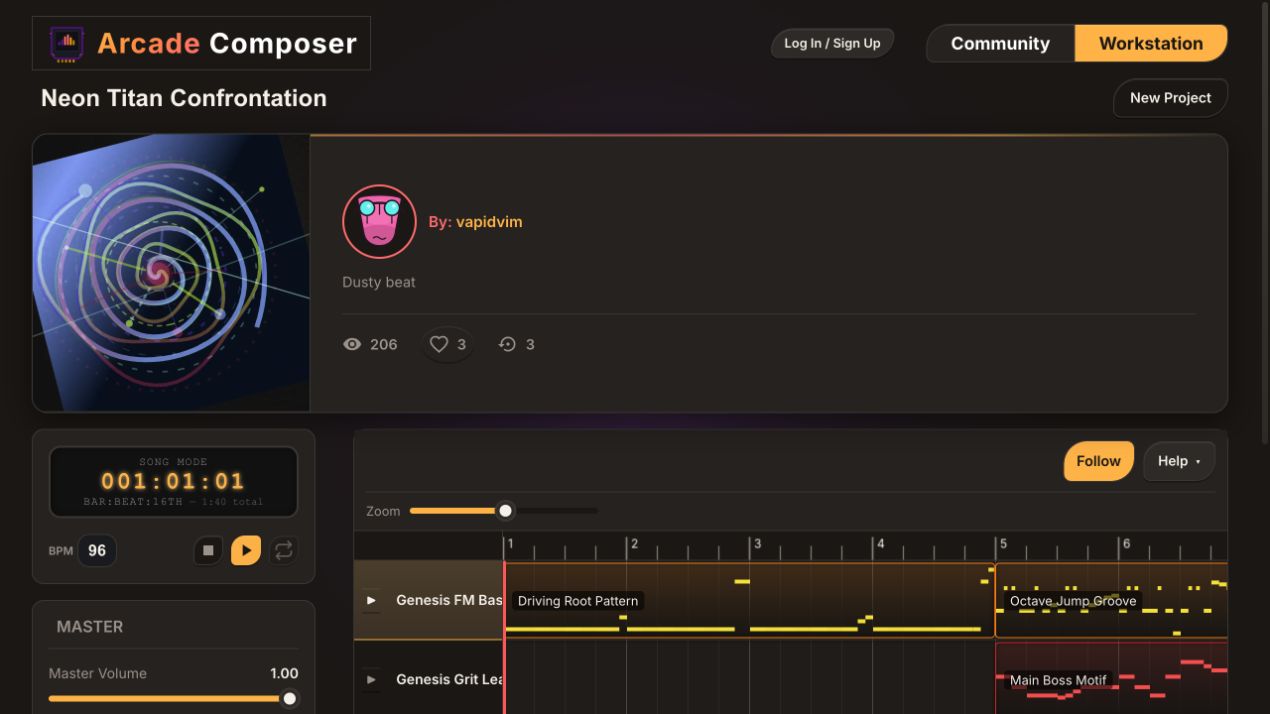
ArcadeComposer is a browser-based music workstation built with chiptune and retro game audio specifically in mind — down to the waveform math. This guide walks through how to use it to write an authentic-sounding chiptune track from scratch, using the console-accurate synthesis features under the hood.
Why Generic Synths Don’t Sound Like Chiptune
Most “retro” presets in general-purpose synths are just a square or saw oscillator run through a bit crusher. That gets you lo-fi, but not chiptune, because it skips the specific quirks that give each console family its character:
- The NES 2A03 chip only has two pulse channels with four selectable duty cycles, one triangle channel with a stepped waveform, and a noise channel driven by a 15-bit linear feedback shift register, or LFSR — not white noise.
- The Game Boy DMG chip uses 4-bit wavetables, giving it a grittier, more limited harmonic palette than the NES.
- The NES’s channels don’t sum linearly. The hardware uses nonlinear mixing circuits for the pulse and triangle/noise/DMC groups, which is part of why real NES music has that particular blend and saturation instead of sounding like clean digital addition.
ArcadeComposer’s synth engine models these specifics directly instead of approximating them with generic filters, so the retro sound comes from the same math the original hardware used, not a stylistic guess.
Hardware character, not a filter
Authentic retro tone begins at the source: stepped waveforms, console-specific noise cycles, restricted channels, and nonlinear mixing. Bit crushing a modern synth adds grit, but it does not recreate the behavior that made each console recognizable.
Step 1: Pick Console-Accurate Waveforms, Not Just “Square”
When you open the synth editor, the oscillator waveform list goes well beyond sine, saw, square, and triangle. Console-specific options include:
- nesTriangle — a 32-step staircase waveform that reproduces the NES triangle channel’s stepped, not smooth, shape. This is the source of that channel’s distinctive bass and mid-range grit.
- NES noise, long and short/metallic modes — built on an actual 15-bit LFSR AudioWorklet, not a white noise buffer. Long mode gives the familiar roughly 32,767-step hiss used for the NES noise channel. Short/metallic mode gives the roughly 93-step tonal cycle used for hi-hats and cymbal-like hits.
- A wavetable bank with 28 single-cycle tables modeled on real chip palettes, including Game Boy DMG bass, bright, organ, buzz, metallic, and whistle tones; PC Engine HuC6280 bell, organ, bright saw, and nasal tones; Atari POKEY grit and buzz; SID-style pulse/triangle blends; SNES-style strings, flute, and choir; plus VRC6 saw, N163 chime, Genesis FM-style brass and bell, and an Amiga-style chip lead.
Instead of choosing “square” and hoping it sounds retro, you can choose the wavetable or noise mode that matches the actual console you’re referencing.
Step 2: Turn On the NES Nonlinear Mixer for Authentic Blend
This is one of the most overlooked details in chiptune recreation. On real NES hardware, the two pulse channels don’t just add together, and the triangle/noise/DMC channels don’t either. Both groups run through nonlinear mixing formulas in the console’s audio hardware, which compresses and slightly saturates the blend.
ArcadeComposer exposes this directly as a per-voice mix mode — pulse or triangle/noise/DMC-style, also called TND — built from the same curves documented on the NESdev wiki. Turning it on for a NES-style patch changes the way two pulse channels or a triangle-and-noise combination blend together. The result is subtler and more glued than simple linear mixing, and part of why side-by-side comparisons with real NES rips sound closer with it enabled than without.
Step 3: Use Duty Cycle and Arpeggios the Way Chip Composers Actually Did
Classic console composers leaned on two tricks constantly because their hardware had so few channels:
- Duty cycle and pulse width as a timbral tool. Because a single pulse channel could only play one note at a time, changing its duty cycle — 12.5%, 25%, or 50% — was one of the only ways to add tonal variety without more voices. ArcadeComposer’s pulse width control lets you dial in the same narrow and wide duty cycles NES and Game Boy pulse channels used, and automate it over time for that classic shifting square lead sound.
- The arpeggio as a fake chord. With only one or two melodic channels, chiptune composers simulated chords and thick basslines by rapidly cycling a single voice through multiple notes, fast enough that the ear fuses them into a chord. The built-in arpeggiator supports custom step patterns and can sync to tempo, so you can recreate the classic rapid NES/Game Boy arpeggio effect without hand-programming dozens of fast note triggers in the sequencer.
Step 4: Start From Retro-Tuned Presets, Then Shape With Macros
The preset library includes NES-flavored patches by name and design intent. Examples include pulse leads at specific duty percentages, dual pulse leads, duty-cycle arpeggio patches, triangle-based bass and pluck sounds, and noise/DMC-style grit stabs. These are all built using the waveform and mixer features above rather than approximations.
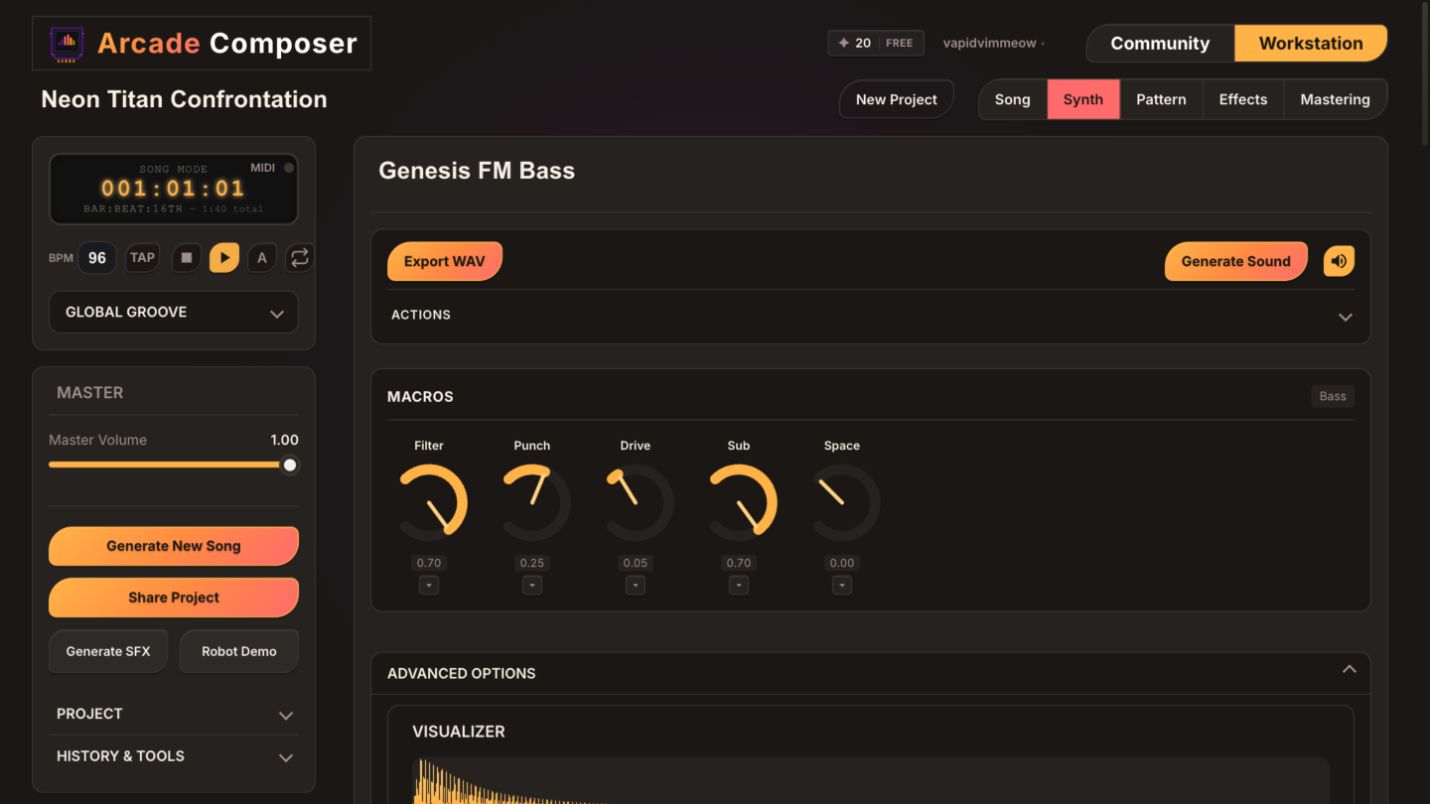
Once a preset is loaded, each instrument category — Bass, Keys, Leads, Pads, and Percussion — exposes five macro knobs mapped to the parameters that matter most for that role. Rather than opening a deep parameter panel, you can push a preset toward brighter, grittier, or more movement with a couple of knob turns and get a usable, distinct variation in seconds. This is useful when you need a title theme, a level theme, and a game-over stinger that all sound related but not identical.
Step 5: Sequence Short, Loop-Friendly Patterns
Retro game music is built around tight loops, not long-form arrangements, because the original hardware and cartridge space demanded it. In the step sequencer, block out short patterns — 8 to 16 steps is typical — per instrument:
- Percussion first, using noise-channel-style hits, NES noise, and LFSR metallic mode for hi-hats to lock the tempo feel.
- Triangle-style bass second, following the noise or drum pattern and mostly holding root notes, the way NES basslines typically do.
- A pulse lead third, using duty cycle changes or the arpeggiator for texture instead of adding more channels.
- A pad or secondary pulse voice last, used sparingly. Real chip hardware rarely had a spare channel for lush pads, so keep this part thin for authenticity.
Because each instrument holds multiple patterns, you can build a calm loop and an intense loop for the same instrument without leaving the sequencer, mirroring the exploration-theme-versus-combat-theme structure common in retro games.
Step 6: Arrange for Looping and State Changes
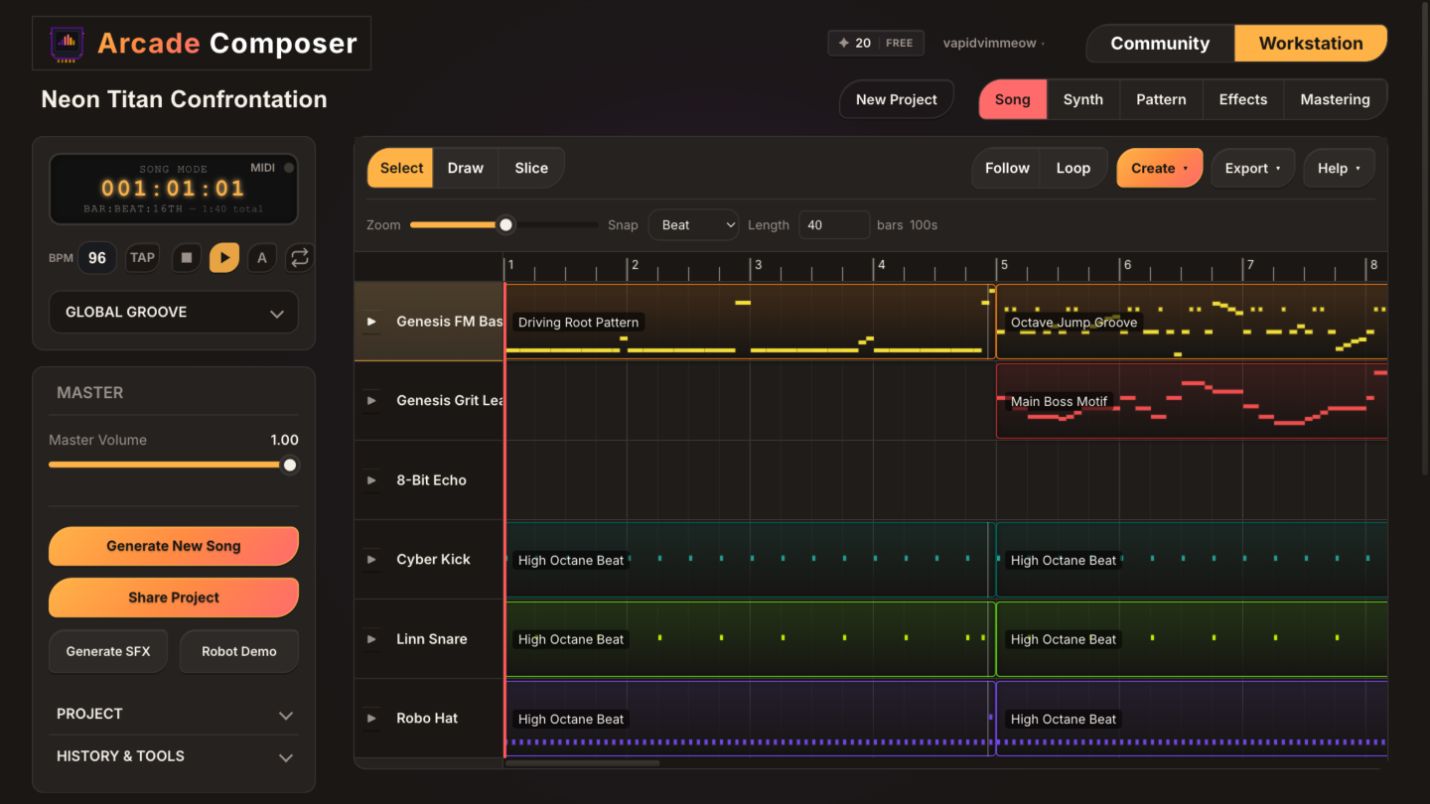
Drag your patterns onto the song timeline to build a structure that fits how retro games actually use music: a short intro, a seamless core loop, an alternate or intensified loop, and a short transition stinger for state changes like entering a boss fight or clearing a level.
Because clips are reusable on the timeline, you can prototype a full adaptive structure — the way NES and Game Boy games looped and branched music — in minutes instead of re-recording variations.
Step 7: Keep the Mix Period-Appropriate
It’s tempting to run a chiptune track through modern mastering and lose the character that made it interesting. A few guidelines that keep the retro identity intact:
- Go light on reverb and stereo widening. Original hardware output was narrow and largely dry; a small amount goes further than a modern-sized reverb tail.
- Use the bit crusher and distortion sparingly and intentionally on non-console waveforms, like sine or standard saw, if you want extra grit, rather than crushing everything uniformly.
- Let the NES nonlinear mixer do some of the glue work instead of over-compressing in mastering. It already replicates part of that blended, slightly saturated character.
- Keep the arrangement thin. Retro authenticity comes as much from channel scarcity as from waveform choice. Four or five simultaneous parts, at most, will read as more console-accurate than a dense modern mix.
Retro authenticity comes as much from channel scarcity as it does from waveform choice.
Step 8: Export for Your Engine or Release
When the track is ready, export directly to WAV, MP3, or OGG, with automatic silence trimming and loudness normalization. OGG is a common format for Unity and Godot projects, so a chiptune loop built here can go straight into a game engine without a conversion pass.
If you’re scoring an actual retro-style game, the same loop-friendly patterns and timeline clips used for arranging map directly onto in-engine looping and state-based music systems.
A Chiptune Build Checklist
- Pick your target console character, such as NES pulse/triangle/noise, Game Boy DMG wavetables, PC Engine, or SNES-style sounds.
- Choose waveforms and noise modes that match it, rather than defaulting to generic square or white noise.
- Enable the NES nonlinear mixer if you’re layering two pulse channels or a triangle/noise/DMC-style combination.
- Use duty cycle changes and the arpeggiator to add texture instead of adding more simultaneous voices.
- Start from a retro-tuned preset and shape it with two or three macro knob turns.
- Keep patterns short, usually 8 to 16 steps, and build calm and intense variations per instrument.
- Arrange on the timeline with a short transition stinger for state changes.
- Mix light: minimal reverb and width, intentional grit, and a thin arrangement.
- Export to OGG or WAV for engine use, or MP3 for release.
Frequently Asked Questions
Do I need to know how the NES or Game Boy sound chips actually worked to use this?
No. The waveform and noise options are labeled by their sonic character and console origin, and the presets already apply console-accurate settings. Understanding the hardware background helps you push further, like knowing when to enable the nonlinear mixer, but it’s not required to get an authentic-sounding result.
What’s the difference between the NES noise modes?
Long mode reproduces the roughly 32,767-step LFSR sequence used for hiss-like noise, including snares, cymbals, and wind. Short/metallic mode reproduces the roughly 93-step tonal cycle used on real NES hardware for hi-hat and metallic percussion sounds. It repeats fast enough to have a pitched, ringing quality rather than pure noise.
Can I mix chiptune waveforms with modern synth sounds in the same track?
Yes. Because the engine blends native Web Audio synthesis with optional Faust WASM DSP voices, you can pair NES-style pulse and triangle waveforms with modern filtered pads, layered leads, or effects-heavy basses in the same project. This is useful for retro-modern hybrid game soundtracks rather than strict 8-bit recreations.
Does the nonlinear mixer actually make an audible difference?
Yes, particularly when two pulse-channel-style voices or a triangle-and-noise combination play together. Linear mixing, or simple addition, sounds cleaner and slightly more modern digital. The nonlinear curves compress and blend the combination the way the original console hardware did, which is a big part of why real NES chip rips have their particular density and warmth even with only a few channels playing.
Start Writing Chiptune
Authentic retro game music comes from working with the same constraints and math the original hardware used, not from generically filtering a modern synth. Open ArcadeComposer, load an NES- or Game Boy-flavored preset, enable the nonlinear mixer, and start blocking out a loop — the console-accurate details are already built in.