Game jams move fast. Client revisions move faster. If you’re a game developer, sound designer, or composer who needs a chiptune loop, a boss battle theme, or a full adaptive soundtrack sketch before your coffee gets cold, you don’t need to install a DAW, hunt down VST plugins, or configure an audio interface. You need a browser tab.
This guide walks through a practical, repeatable workflow for sketching game music ideas fast using ArcadeComposer, a browser-based music workstation built specifically for retro and modern game audio — synth engine, pattern sequencer, song arranger, effects/mastering rack, MIDI I/O, and optional AI composition tools included, with nothing to install.
Why Browser-Based Composition Works for Game Audio
Traditional music production tools were built for studio musicians, not game developers on a deadline. A browser-based workstation removes the friction that slows down early-stage soundtrack ideation:
- Zero install, zero project setup. Open a tab and you have a synth, sequencer, and mixer ready to go.
- Instant iteration. Change a preset, tweak a macro knob, and hear the result immediately — no plugin scanning, no buffer underruns.
- Portable sessions. Because everything runs on the Web Audio API, your sketch works the same on a laptop at a game jam, a work desktop, or a tablet.
- Low barrier for non-musicians. Game developers who aren’t trained composers can still build a usable loop using presets and pattern-based sequencing instead of staring at a blank piano roll.
- Cloud project sync. Save a sketch, come back to it from another machine, and keep iterating without managing local files.
The rest of this post breaks the process into six steps you can run through in a single sitting.
The fast-sketch rule
Prove the musical direction before polishing the sound. Start with a close preset, shape only the controls the scene needs, and build a short playable loop. Deep synthesis and mix decisions become valuable after the idea survives a playtest.
Step 1: Start From a Preset, Not a Blank Synth
The fastest way to kill momentum on a soundtrack idea is to start sound design from scratch. Instead, start from a preset library organized by musical role:
- Bass — sub, pluck, and growl basses for low-end drive
- Keys — chip arps, plucky keys, and chord stabs
- Leads — melodic leads for themes and hooks
- Pads — sustained atmosphere and drone textures
- Percussion — kicks, snares, hats, and noise-based hits tuned for 8-bit and modern hybrid styles
Load a preset that’s roughly in the right lane — a pluck bass for a platformer, a pad for an ambient exploration area, a lead for a boss theme — and treat it as a starting point, not a final sound. Because the underlying synth engine blends native Web Audio synthesis with optional Faust WASM DSP voices, presets can range from crunchy 8-bit oscillators to richer, filtered modern tones without switching tools.
Step 2: Shape the Sound With Macro Knobs, Not Deep Menus
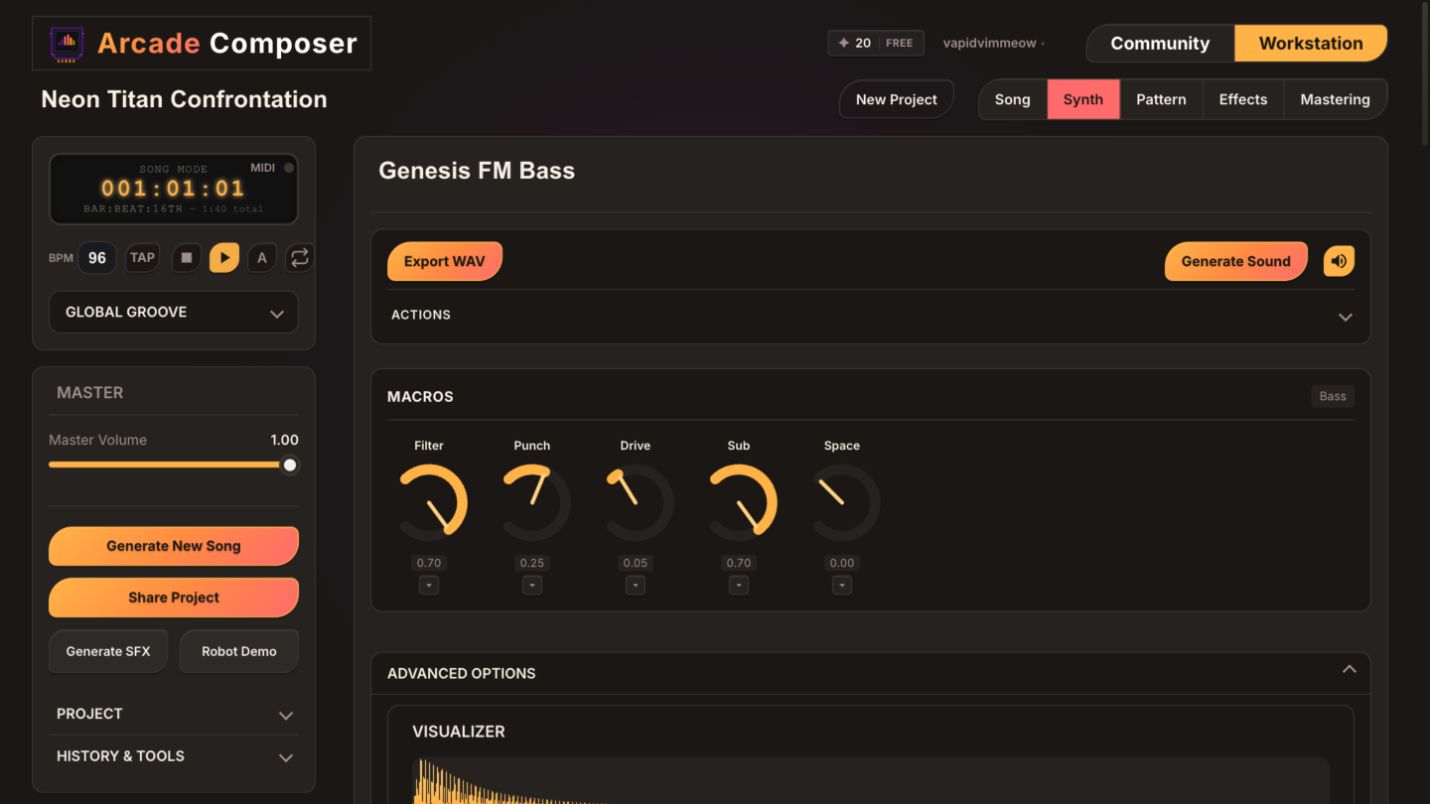
Once a preset is loaded, resist the urge to open every parameter panel. Each instrument category exposes five macro knobs — high-level controls mapped to the parameters that matter most for that kind of sound. Think “brightness,” “movement,” “grit,” “space,” and “punch” rather than raw filter cutoff and envelope numbers.
Turning three or four macro knobs gets a preset from “generic” to “fits this scene” in under a minute. This is the single fastest lever for making a stock preset sound intentional:
- Adjust one macro for tone — brighter/darker or harder/softer.
- Adjust one macro for movement — static vs. evolving.
- Adjust one macro for space — dry vs. ambient.
- Commit, and move to the next instrument.
Save deep parameter editing — oscillator waveforms, filter types, envelope stages, LFO routing — for after the arrangement idea is proven.
Sound-design polish on an idea nobody likes yet is wasted effort.
Step 3: Build the Groove in the Pattern Sequencer
With a handful of shaped instruments, switch to the step sequencer and block out a short pattern per instrument — typically 8 to 16 steps. For fast game soundtrack ideation, keep patterns short and loop-friendly:
- Drums first. Lock a kick/snare/hat pattern that defines the tempo feel: walking pace, combat intensity, or puzzle calm.
- Bass second. Follow the kick, leave rhythmic space, and keep it root-note-driven until the harmony is settled.
- Lead or keys third. Add a short motif — four notes repeated is often enough for a game loop.
- Pad last. Fill harmonic gaps and glue the mix together.
Each instrument can hold multiple patterns, so you can build an “A” section and a “B” section — calm vs. intense, verse vs. chorus, exploration vs. combat — without leaving the sequencer.
Step 4: Arrange in the Song Timeline
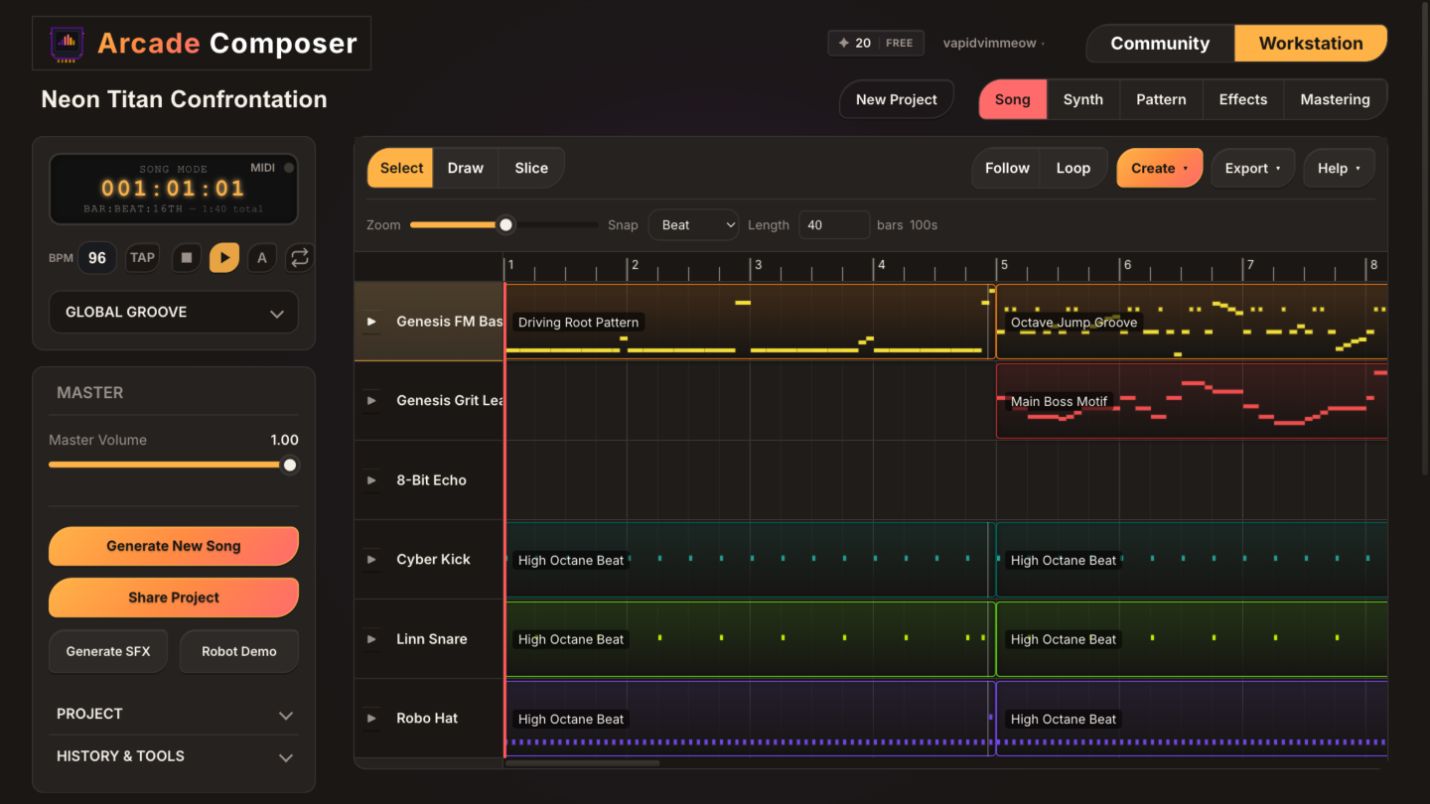
Game music often needs to loop seamlessly or transition between states: exploration to combat, calm to danger. Once you have two or three patterns per instrument, drag them onto the song arrangement timeline to build a full structure in minutes:
- Intro — sparse, sets mood
- Loop A — core gameplay loop
- Loop B — variation or intensity increase
- Transition/stinger — short pattern for state changes, like entering combat
Because patterns are reusable clips on a timeline, you can prototype an entire adaptive-music structure — the kind used for horizontal re-sequencing in games — without re-recording anything. This is one of the biggest time savers versus a traditional DAW workflow, where arranging often means duplicating and re-editing audio regions.
Step 5: Polish With Effects and Mastering, Not Mixing From Scratch
Once the arrangement plays back and the idea is validated, run it through the effects and mastering chain. Rather than manually chaining a dozen individual plugins, apply a mastering preset and adjust from there. A few minutes here typically does more for perceived quality than another hour of sound design.
The mastering preset list is worth knowing because several are tuned to specific consoles and eras rather than generic genres: Transparent, Warm & Full, Bright & Present, Electronic, Lo-Fi Tape, Wide & Immersive, Loud & Aggressive, and Hip-Hop cover modern production styles, while NES, SNES, Game Boy, Genesis, PS1, and Arcade FM presets shape the EQ, saturation, and limiting curve to match the sonic character of that specific hardware generation.
If you’re scoring a retro-styled game, starting from the matching console preset gets the master closer to “authentic” in one click than manually EQ’ing toward that sound.
Common fast wins:
- A touch of stereo widening on pads for perceived space without losing mono compatibility, which is important for many game engines.
- Light compression/limiting so the loop sits at a consistent, game-safe loudness.
- A short reverb send on leads/keys to glue the mix without washing out transients needed for gameplay feedback sounds.
Step 6: Export and Get It Into the Engine
When the idea is ready, export directly to WAV, MP3, or OGG, with per-format quality controls — bit depth for WAV, bitrate for MP3, quality level for OGG — and a choice of exporting the full render, just the seamless loop region, or a split intro/loop pair.
OGG in particular is a common game engine format, including Unity and Godot, so you can go from browser sketch to imported audio asset without a conversion step. Export includes optional silence trimming and normalization, so loop points and levels are clean by default — no manual editing required before dropping the file into your project.
You can also export the arrangement as a standard MIDI file, which is useful for handing a sketch off to a live player, a notation program, or another DAW for a final live-instrument pass — you’re not locked into audio-only output.
If you’re composing with an external MIDI keyboard or controller, the built-in MIDI I/O supports recording input during playback and MIDI learn for mapping hardware knobs/CCs directly to synth parameters. This is useful for performing a lead line live over a locked-in backing pattern instead of programming every note by hand in the sequencer.
Optional: Let AI Handle the First Draft
Everything above assumes you’re building patterns and arrangements by hand, but ArcadeComposer also includes a set of credit-based AI tools for when you want a starting point even faster than manual sketching:
- AI Composer generates a full multi-instrument song — instruments, patterns, and song arrangement — from a written description, with selectable moods and song-structure templates as a starting scaffold.
- AI Arranger takes an existing set of patterns and restructures them into a fuller song timeline: intro, sections, transitions.
- AI Layer Generator adds a new instrument on top of an existing project — for example, generating a complementary bass or pad line that follows the harmony already in place.
- AI Pattern Generator writes or remixes notes within a single pattern, including targeted operations like transpose, quantize, humanize, adjust velocity/duration, and shift timing. This is useful for fixing a pattern that’s “almost right” without redoing it by hand.
- AI Preset Generator creates a synth preset — name and full parameter set — from a text description, complementing the built-in preset library.
- Sound Effects Generator renders one-shot game SFX — hits, pickups, UI blips, impacts — directly in the browser using the same synth engine, separate from the music workflow.
These tools are optional accelerants, not replacements for the workflow above. A common pattern is generating a first draft with AI Composer, then using macro knobs and the pattern sequencer to make it sound intentional rather than generic.
A Fast-Sketch Checklist
- Use this as a repeatable loop for any new soundtrack idea:
- Pick 3–4 presets that roughly match the scene: drums, bass, and one melodic voice.
- Shape each with 2–3 macro knob turns — don’t over-tweak.
- Block out an 8–16 step pattern per instrument, drums first.
- Build a second pattern variation for contrast, such as calm vs. intense.
- Arrange both on the song timeline with a short transition.
- Apply one mastering preset — a console-specific one if you’re going for a retro sound — and adjust to taste.
- Export to OGG/WAV/MP3 for the engine, or MIDI if you need the notes elsewhere.
- Save the project so you can revisit and extend it later.
Why This Matters for Small Teams and Solo Developers
Most solo developers and small studios don’t have a composer on staff, and hiring one for early prototyping is often overkill. You need to know if a level “feels right” with music before investing in a final score.
A browser-based workstation like ArcadeComposer lets a developer, designer, or producer rough out that feeling in minutes: enough to playtest, get feedback, and decide whether the direction works, without blocking on outside collaborators or local software setup. When the direction is validated, that same sketch — patterns, arrangement, and mix — is already most of the way to a finished track.
Frequently Asked Questions
Do I need a MIDI controller to use this workflow?
No. Everything described above — presets, macro knobs, pattern sequencing, arrangement, and mastering — works entirely with mouse/keyboard and the built-in step sequencer. MIDI input is an optional addition for players who prefer performing lead lines live.
Will browser-based synthesis sound as good as a “real” DAW?
The synth engine combines native Web Audio synthesis with optional Faust WASM DSP voices, giving a range from classic 8-bit chiptune tones to richer filtered/modern sounds, run through a proper effects and mastering chain before export. For soundtrack ideation and many finished game loops, this is more than sufficient — and it’s fast enough to iterate on in real time.
What audio formats can I export?
WAV, MP3, and OGG, with per-format quality settings, optional silence trimming, and loudness normalization so exported loops are clean and game-ready. You can also export the full arrangement as a standard MIDI file.
Are the mastering presets actually tuned for retro consoles, or just named that way?
They’re tuned parameter sets — EQ curves, saturation amount, stereo width, and limiter behavior are each adjusted per preset: NES, SNES, Game Boy, Genesis, PS1, Arcade FM, plus modern-genre presets like Lo-Fi Tape and Electronic. They are not a single generic preset with different labels.
Is the AI composition feature required to use the app?
No. AI Composer, Arranger, Layer Generator, Pattern Generator, Preset Generator, and the Sound Effects Generator are optional, credit-based tools for speeding up the first draft. The entire manual workflow in this post — presets, macros, sequencer, arrangement, mastering, export — works without touching any AI feature.
Can I pick up a sketch later and keep working on it?
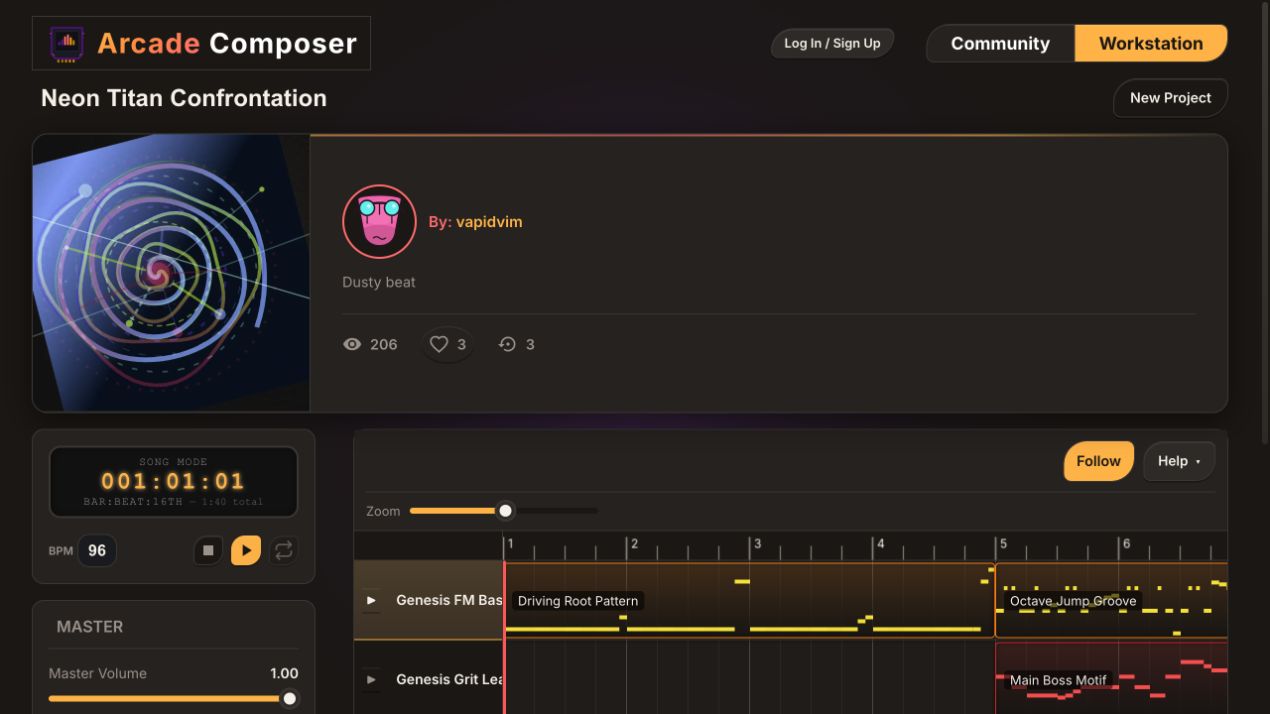
Yes. Projects can be saved to a cloud account and reopened from any browser to continue arranging, mixing, or exporting.
Start Sketching
The best game soundtrack ideas rarely come from staring at a blank project in a heavyweight DAW — they come from fast, low-friction experimentation. Open ArcadeComposer in a browser tab, load a preset, turn a few macro knobs, and see how quickly a scene starts to have a sound.